![[Previous]](prev.gif) |
![[Contents]](contents.gif) |
![[Index]](keyword_index.gif) |
![[Next]](next.gif) |
|
|
|
|
 |
This version of this document is no longer maintained. For the latest documentation, see http://www.qnx.com/developers/docs. |
In Photon, all applications consist of one or more rectangles called regions, which reside in an abstract, three-dimensional event space. Regions are assigned an identification number of type PhRid_t.
This chapter discusses:
 |
You can use phview to see what regions exist on your machine. For more information, see the Utilities Reference. |
The Photon coordinate space looks like this:
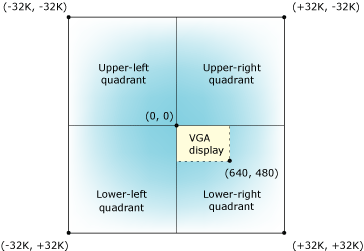
Photon coordinate space.
|
Unlike the typical Cartesian layout, the lower-right quadrant is the (+,+) quadrant. |
The root region has the same dimensions as the entire coordinate space. As a rule, graphics drivers map the display screen to the location shown in the above diagram and place the Photon origin at the upper-left corner of the display screen. (Graphics drivers equate a single Photon coordinate to a single pixel value on your display screen).
When an application specifies coordinates within a given region, these are relative to the region's origin. The application specifies this origin when it opens the region.
The initial dimensions of a region (i.e. rect argument in PhRegionOpen()) are relative to its origin. These dimensions control the range of the coordinates that the application can use within the region.
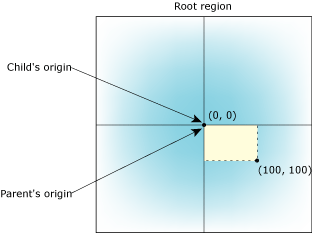
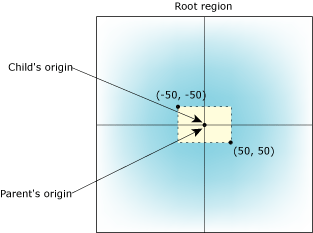
Let's look at some examples to get an idea of the relationship between a region's origin and its initial rectangle coordinates. These examples illustrate how opened regions are placed in relation to the root region, which has its origin in the center of the Photon coordinate space.
By default, applications use the following approach for regions. (These kinds of regions are described in “Photon window manager” in the Photon Architecture appendix.)
Upper left of initial rectangle = (0,0)
Lower right of initial rectangle = (100,100)
The following example shows an approach typically used for regions that fill the entire coordinate space. For example, for the device region and the workspace region, the upper left is (-32768,-32768) and the lower right is (32767,32767).
Upper left of initial rectangle = (-50,-50)
Lower right of initial rectangle = (50,50)
Many widgets create regions that have their upper-left corners at negative coordinates, so that the origin of the widgets' canvas is at (0, 0):
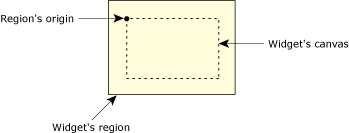
The following example shows how a child's origin can differ from its parent's origin.
Upper left of initial rectangle = (0,0)
Lower right of initial rectangle = (100,100)
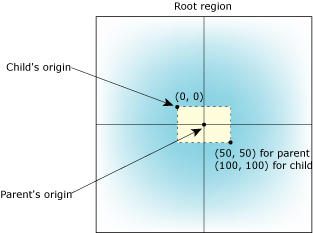
A child region's origin is specified relative to the parent's origin. So, when a region is moved, all its children automatically move with it. Likewise, when a region is destroyed, its children are destroyed.
|
If you want to make a region larger than any other of your application's regions, make it a child of the root region by calling PhRegionOpen() or PhRegionChange(), specifying Ph_ROOT_RID as the parent. |
A region can emit or collect events only where it overlaps with its parent. For example, in the following diagram:
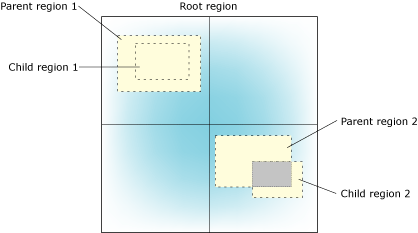
Regions and event clipping.
Because of this characteristic of regions, any portion of a region that doesn't overlap its parent is effectively invisible.
In Photon, every region has a parent region. This parent-child relationship results in a region hierarchy with the root region at the top. The following diagram shows the hierarchy of a typical Photon system:
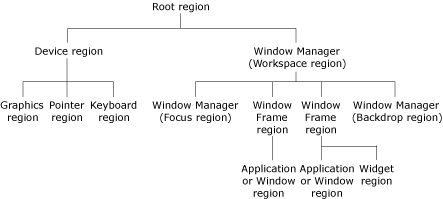
Hierarchy of regions for a typical Photon system.
The Photon Manager always places child regions in front (i.e. on the user side) of their parents:
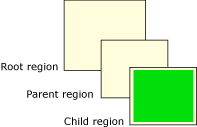
|
When opening a region, an application specifies the region's parent. If an application opens a region without specifying its parent, the region's parent is set to a default — basic regions become children of the root region and windows become children of the window manager's backdrop region. |
Besides having a parent, a region may have “brothers,” i.e. other regions who have the same parent. A region knows about only two of its brothers — the one immediately in front and the one immediately behind.
The following diagram shows a parent with three children, and the relationship that child region 2 has with its brothers:
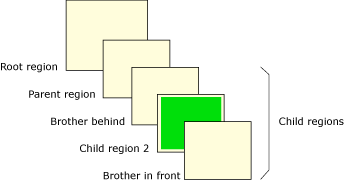
When the application opens a region (e.g. child region 2 in the above diagram), it can specify neither, one, or both immediate brothers. Depending on how the application specifies these brothers, the new region may be placed according to default rules (see below) or at a specific location.
|
If an application opens a region, specifying both brothers, and this action results in an ambiguous placement request, the request fails. |
If an application opens a region without specifying brothers, the Photon Manager places that region using default placement rules. In most cases, these rules cause a newly opened region to be placed in front of its frontmost brother, which then becomes “brother behind” of the new region. (To use different placement rules, you can specify the Ph_FORCE_FRONT flag.)
For example, in the following diagram, child region 1 is the frontmost region:
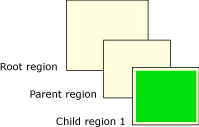
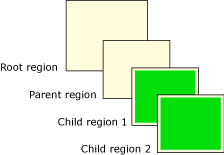
When the application opens child region 2 with default placement (next diagram), region 2 is placed in front of region 1. Region 1 becomes region 2's brother “behind.” Region 2 becomes region 1's brother “in front.”
An application uses the Ph_FORCE_FRONT flag when it wants a region to remain in front of any subsequent brothers that rely on the Photon Manager's default placement.
As mentioned earlier, when a region is opened with default placement, it's placed ahead of its frontmost brother. But if any brother has the Ph_FORCE_FRONT flag set, then the new region is placed behind the farthest brother that has the Ph_FORCE_FRONT flag set.
For example, let's see what would happen in the following example if child region 1 had the Ph_FORCE_FRONT flag set:
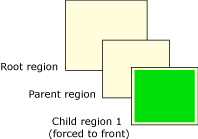
When child region 2 is opened with default placement (next diagram), it's placed behind region 1, and region 1 becomes its “brother in front.” Because region 2 was placed using default rules, it doesn't inherit the Ph_FORCE_FRONT setting of region 1:
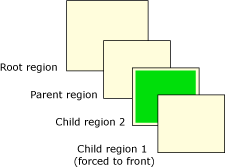
Then, if child region 3 is opened with default placement, it's placed as follows:
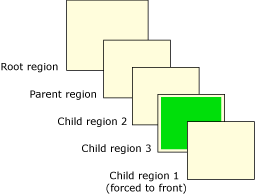
|
The application can set the Ph_FORCE_FRONT flag when it opens a region (or later) by changing the region's flags. The state of this flag doesn't affect how the region itself is placed, but rather how subsequent brothers are placed if those brothers are opened using default placement rules. That is, the Ph_FORCE_FRONT state of existing brothers doesn't affect the placement of a new region if it's opened with specified brother relations. See the next section, Specific placement. |
Remember that the Ph_FORCE_FRONT flag affects placement only among brother regions — a child region always goes in front of its parent.
In contrast to default placement, if any brother is specified when a region is opened, then that specification controls the placement of the new region. We refer to this as specific placement.
If a “behind” brother is specified, then the newly opened region automatically is placed in front of that brother.
If an “in front” brother is specified, then the newly opened region is automatically placed behind that brother.
|
The Ph_FORCE_FRONT setting of the specified brother is inherited by the new region. If an application opens a region, specifying both brothers, and this results in an ambiguous placement request, then the open fails. |
To open a region, create a PtRegion widget. The PtRegion widget isn't included in PhAB's widget palette; to instantiate it:
Or:
For more information on the PtRegion widget, see the Widget Reference.
While a region is always in front of its parent, the region's placement relative to its brothers is flexible. See “Placement and hierarchy” for more information about “default” and “specific” placement.
The PhRegion_t structure (see the Library Reference) contains the following members. These indicate the relationship of a region with its siblings:
To retrieve this information, you can use PhRegionQuery().
An application can specify a region's placement when it opens the region, or it can change the placement later on. To change a region's placement, the application must change the relationship between the region and the region's family.
The application does this by doing any or all of the following:
|
Since an application can be sure of the position of only the regions it owns, it shouldn't change the position of any other regions. Otherwise, by the time the application makes a request to change the position of a region it doesn't own, the information retrieved by PhRegionQuery() may not reflect that region's current position. That is, a request to change a region's placement may not have the results the application intended. |
You can change a region's parent in these ways:
The following constants are defined in <photon/PhT.h>:
| If you set: | Then: |
|---|---|
| bro_behind | The region indicated in the rid member of PhRegion_t moves in front of the bro_behind region |
| bro_in_front | The region indicated in the rid member of PhRegion_t moves behind the bro_in_front region |
As discussed in “Changing the parent,” a region inherits the parent of any specified brothers that are children of another parent.
You can get the following information about your system:
|
You don't get information about each region. Instead, you get the
minimum value of each type of information.
For example, if several graphics-driver regions overlapping your window have different bandwidths, the bandwidth given is the minimum of them. |
There are two functions that you can use to get system information:
PhQuerySystemInfo() sends a message to the server each time that you call it.
PtQuerySystemInfo() calls PhQuerySystemInfo(), but buffers the information. When a region that intersects your widget changes (for example, it's moved), the buffer is marked as invalid. The next time you call PtQuerySystemInfo(), it calls PhQuerySystemInfo() again. By using the buffer whenever possible, PtQuerySystemInfo() keeps the number of messages to a minimum.
Both PtQuerySystemInfo() and PhQuerySystemInfo() fill in a structure of type PhSysInfo_t that your application has allocated. For more information, see the Photon Library Reference.
One field that's of particular interest is the graphics bandwidth, in gfx.bandwidth. This value can be used to modify the behavior of an interface based on the connection speed. For example, a simple state change could be substituted for an elaborate animation if the bandwidth is Ph_BAUD_SLOW or less. It's also a good idea to see if shared memory can be used for drawing; the Ph_GCAP_SHMEM flag is set in gfx.capabilities if all the graphics drivers support the ...mx() functions and they're all running on your node.
|
|
|
|